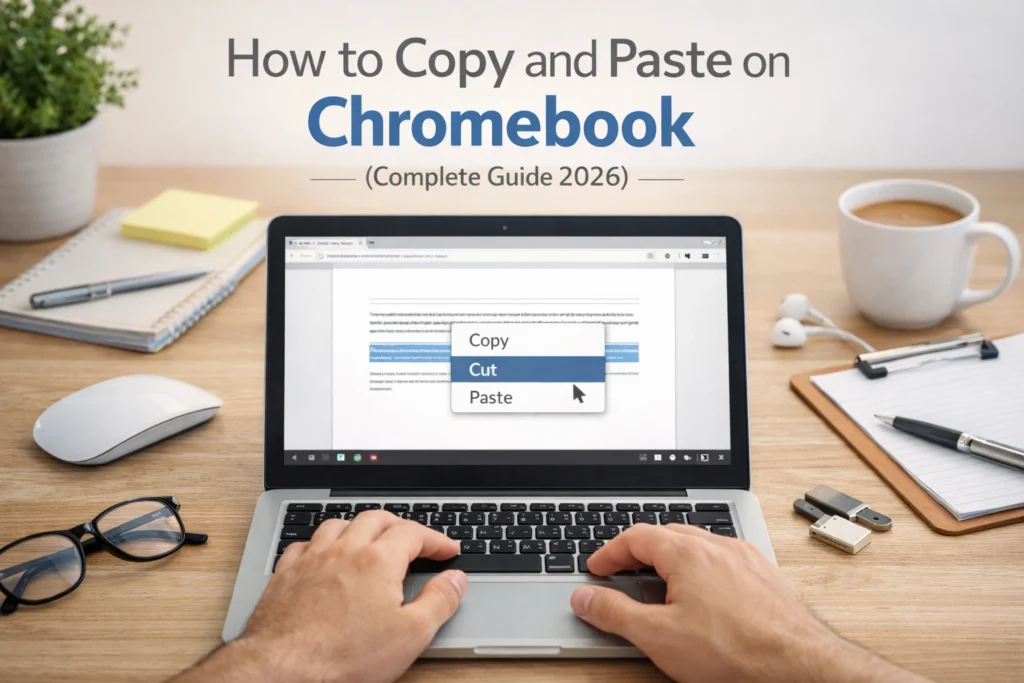

How to Copy and Paste on Chromebook (Complete Guide 2026)
If you’re coming from Windows or Mac, the first thing you’ll notice is that a Chromebook feels lighter, faster, and slightly different in how it handles everyday actions. Copying and pasting is one of those actions that looks simple on the surface but works a bit differently under the hood.
Chromebooks run on ChromeOS, which is built around speed, simplicity, and cloud-based workflows. Unlike traditional operating systems, it leans heavily on keyboard shortcuts and touchpad gestures rather than deep right-click menus or layered controls. This means once you understand the system, everything becomes faster and more fluid.
Another key difference is how Chromebooks prioritize minimal friction. Whether you’re copying text from a browser, moving content into a document, or pasting something into an email, the process is designed to feel instant. However, many users struggle in the beginning because they try to use it exactly like Windows or Mac. The real advantage comes when you adapt to how a Chromebook is meant to be used.
Mastering copy and paste on a Chromebook is not just about saving a few seconds. It directly affects how quickly you write, research, communicate, and handle daily tasks. If you’re working in SEO, blogging, or client communication, this becomes a core skill that compounds over time.
Basic Copy and Paste on Chromebook (The Standard Method)
At its core, copying and pasting on a Chromebook follows the same logic as any other device. You select something, copy it, and then paste it wherever you need. The difference lies in how efficiently you can do it once you understand the shortcuts and gestures.
Using Keyboard Shortcuts (Fastest Way)
The fastest and most reliable way to copy and paste on a Chromebook is by using keyboard shortcuts. This is where ChromeOS really shines.
When you want to copy something, you press Ctrl and C at the same time. When you want to paste it, you press Ctrl and V. If you want to cut something, meaning you remove it from its original place and move it elsewhere, you use Ctrl and X.
These shortcuts work across almost everything on a Chromebook. You can use them inside Google Docs, while writing emails, when copying text from websites, or even while organizing content across different tabs. Once this becomes muscle memory, you stop thinking about it and start working faster without interruption.
What makes this powerful is consistency. Unlike some systems where behavior changes depending on the app, Chromebook keeps things predictable. That consistency is what allows you to move quickly between tasks without slowing down.
Using Right-Click (Trackpad or Mouse)
If you prefer a more visual approach, you can use the right-click method. On a Chromebook trackpad, right-clicking is done by tapping with two fingers at the same time. This opens a small menu where you’ll see options like copy, paste, and cut.
If you’re using an external mouse, the process is even more familiar. You simply right-click and choose the action you want. This method is helpful for beginners who are still getting comfortable with shortcuts or for situations where you want to double-check what you’re doing.
While this approach works well, it is slightly slower compared to keyboard shortcuts. Over time, most users naturally shift toward shortcuts because they remove unnecessary steps and keep the workflow smooth.
Using the Chromebook Touchscreen (If Available)
Some Chromebooks come with touchscreen support, and this adds another layer of flexibility. If your device supports touch, you can copy and paste using gestures similar to a smartphone.
To copy text, you tap and hold on a word until it gets highlighted. Then you adjust the selection by dragging the handles to include the exact portion of text you want. Once selected, you’ll see an option to copy. After that, you tap where you want to paste and select the paste option.
This method feels natural if you’re used to using a phone or tablet. It is especially useful when you’re using your Chromebook in tablet mode or when you don’t want to rely on the keyboard.
Even though it’s convenient, it’s not always the fastest option for long-form work. For writing, editing, or handling large amounts of content, keyboard shortcuts still remain the most efficient choice.
📌 You might also like: MataRecycler
How to Select Text Properly (Most People Get This Wrong)
Before you can copy anything, you need to select it correctly. This is where most users lose time without realizing it. Poor selection leads to mistakes, rework, and unnecessary frustration.
Selecting Single Words, Sentences, and Paragraphs
On a Chromebook, selecting text can be extremely quick if you know the right techniques. If you want to select a single word, you simply double-click on it. If you want to select a full paragraph, you can triple-click, and it will highlight everything in one go.
For more control, you can click and drag your cursor across the text. This allows you to select exactly what you need, whether it’s a short phrase or a long section of content. The key is precision. The better you get at selecting text, the smoother your workflow becomes.
This is especially important for tasks like blogging, SEO writing, or editing client content, where accuracy matters. One wrong selection can lead to copying extra formatting, broken sentences, or misplaced information.
Selecting Non-Adjacent Text (Advanced Tip)
One limitation on Chromebooks is that selecting multiple non-adjacent pieces of text is not as straightforward as it is on some other systems. You can’t easily hold a key and pick separate chunks of text from different areas.
However, there are practical workarounds. Most users handle this by copying one section at a time and using temporary spaces like a document or notes app to organize everything before final placement. While it may seem like an extra step, it keeps your workflow clean and controlled.
Once you understand these small details, copying and pasting on a Chromebook stops being a basic action and turns into a fast, reliable system that supports your daily work without slowing you down.
📌 You might also like: OpenFuture World
Advanced Copy and Paste Techniques on Chromebook
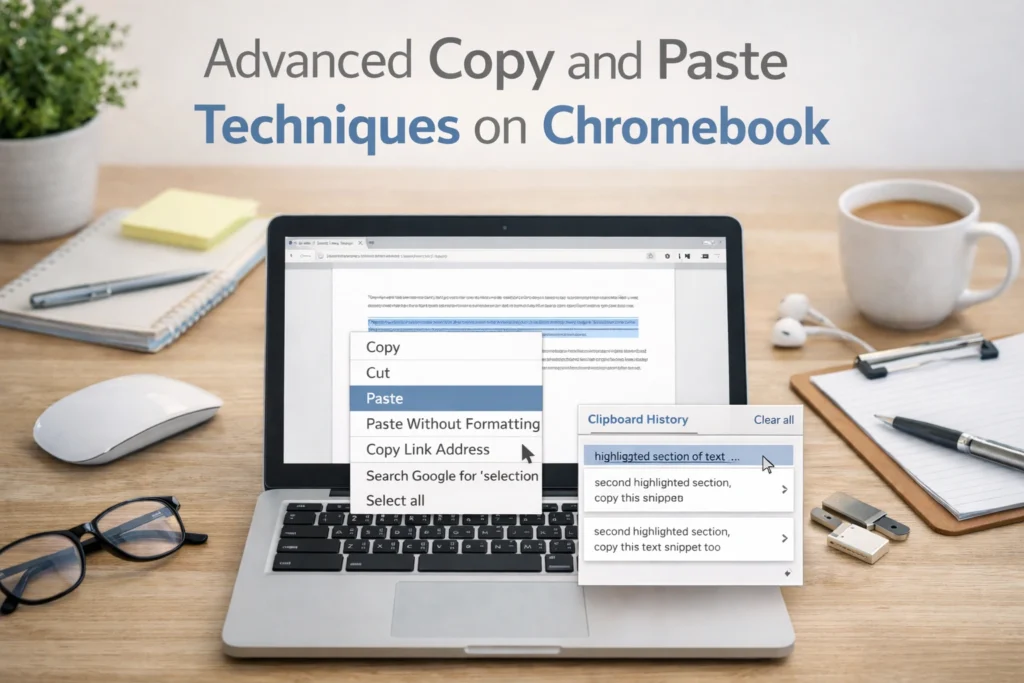
Once you’ve mastered the basics, the real efficiency comes from understanding how to use copy and paste in a smarter way. This is where most users separate themselves. Instead of just moving text from one place to another, you start controlling formatting, managing multiple items, and working across apps without friction.
How to Copy and Paste Without Formatting (Paste as Plain Text)
One of the most common problems people face is messy formatting. You copy something from a website, paste it into a document, and suddenly the font, size, spacing, and colors are completely off. This happens because you’re not just copying text, you’re also copying hidden styling.
On a Chromebook, you can avoid this completely by pasting as plain text. Instead of using the regular paste shortcut, you use Ctrl and Shift along with V. This removes all formatting and pastes only the raw text. This becomes extremely useful if you’re writing blogs, emails, or client content where consistency matters. It saves time that would otherwise be spent fixing headings, adjusting fonts, or cleaning up spacing issues.
Once you build the habit of using plain text paste, your content stays clean from the start, and your workflow becomes much more efficient.
Clipboard History on Chromebook (Game Changer Feature)
Most people think you can only copy one thing at a time, but Chromebooks offer a much more powerful feature called clipboard history. This allows you to store multiple copied items and access them whenever needed. Instead of losing your previous copy when you copy something new, Chromebook keeps a record of recent items. You can open this history by pressing the Search key along with V. A small panel appears showing your recently copied text, links, or content.
From there, you can choose exactly what you want to paste. This is especially useful when you’re researching, writing, or managing multiple pieces of information at once. For example, if you’re drafting a blog post, you can copy several references, headings, or ideas and insert them wherever needed without going back and forth repeatedly.
This feature alone can significantly speed up your work, especially if your daily tasks involve content creation, SEO, or communication.
Copying and Pasting Files (Not Just Text)
Copy and paste on a Chromebook is not limited to text. You can also copy and move files just as easily. Inside the Files app, you can select a file and copy it using the same Ctrl and C shortcut. If you want to move it instead of copying, you use Ctrl and X. Then you navigate to the destination folder and paste it using Ctrl and V.
This works across local storage, external drives, and even cloud storage like Google Drive. The experience remains consistent, which makes file management simple and predictable.
Understanding the difference between copying and cutting is important here. Copying creates a duplicate, while cutting moves the original file to a new location. Using the right action helps you stay organized and avoid accidental duplicates or lost files.
📌 You might also like: HHKTHK
Copy and Paste Between Apps and Tabs
One of the biggest advantages of a Chromebook is how smoothly it handles workflows across apps and browser tabs. Since ChromeOS is built around the browser, moving content between different environments feels natural and fast.
From Browser to Docs or Sheets
A common scenario is copying content from a website and pasting it into a document or spreadsheet. While this works seamlessly, formatting can sometimes carry over in unwanted ways.
For example, headings from a website might appear too large, or links may include extra styling. In these cases, using the plain text paste method helps maintain consistency.
Another important detail is how links behave. When you copy text that includes a hyperlink, the link may come with it. Depending on your goal, you might want to keep it or remove it. Being aware of this helps you maintain clean and intentional formatting in your work.
Cross-App Productivity Workflow
Real productivity comes from combining copy and paste with your daily workflow. Think about how you move between Gmail, Google Docs, spreadsheets, and browser tabs. Every time you copy and paste, you are connecting different parts of your work.
For example, you might copy information from a website, paste it into a document, refine it, and then send it via email. Or you might collect data from multiple tabs and organize it into a structured format.
The key here is flow. The fewer interruptions you have, the more focused and productive you become. Using shortcuts, managing clipboard history, and understanding how formatting works all contribute to a smoother workflow.
Over time, these small improvements stack up. What once felt like a basic function turns into a powerful tool that supports faster writing, better organization, and more efficient execution of daily tasks.
📌 You might also like: pizmotidxizvou
Common Problems & Fixes (Troubleshooting Guide)
Even though copying and pasting on a Chromebook is simple, there are moments when things don’t work the way you expect. These issues are usually small, but they can disrupt your workflow if you don’t know how to handle them.
Copy and Paste Not Working on Chromebook
If copy and paste suddenly stops working, the first thing to understand is that the issue is rarely permanent. In most cases, it’s caused by a temporary glitch, a specific app limitation, or a minor system delay.
Sometimes the keyboard shortcuts don’t respond because the active window isn’t properly selected. Clicking once inside the app or text area often fixes the issue instantly. In other cases, certain websites or apps restrict copying for security reasons, which can make it seem like your Chromebook is not working properly.
Another possibility is a keyboard-related issue. If one of the keys is not responding correctly, the shortcut won’t work. Testing the shortcut in a different app can help you quickly identify whether the issue is system-wide or limited to a specific place. Understanding these small factors helps you avoid unnecessary frustration and quickly get back to work.
Fixing Clipboard Issues
Clipboard-related problems can also affect how copy and paste behaves. If you notice that copied content isn’t showing up when you paste, or your clipboard history isn’t working properly, a quick reset usually solves it.
Closing and reopening your browser tabs can refresh the system. If that doesn’t work, restarting your Chromebook clears temporary glitches and restores normal functionality.
Keeping your ChromeOS updated is also important. Updates often fix minor bugs that affect everyday features like clipboard behavior. If your system is outdated, you might experience inconsistencies that don’t appear on updated devices. These fixes are simple, but they are effective in most situations.
Why Formatting Breaks When Pasting
Formatting issues are one of the most common frustrations, especially if you’re working with content regularly. When you copy text from a website, you’re not just copying words. You’re also copying hidden styling such as fonts, colors, spacing, and structure.
When this styling conflicts with your document, the result looks messy and unprofessional. Headings may appear too large, text spacing may feel off, and the overall layout can break.
The most reliable way to fix this is to paste without formatting. This removes all hidden styling and allows your document’s existing format to stay consistent. Once you understand why formatting breaks, it becomes much easier to control how your content looks.
📌 You might also like: Aponeyrvsh
Pro Tips to Master Copy and Paste on Chromebook
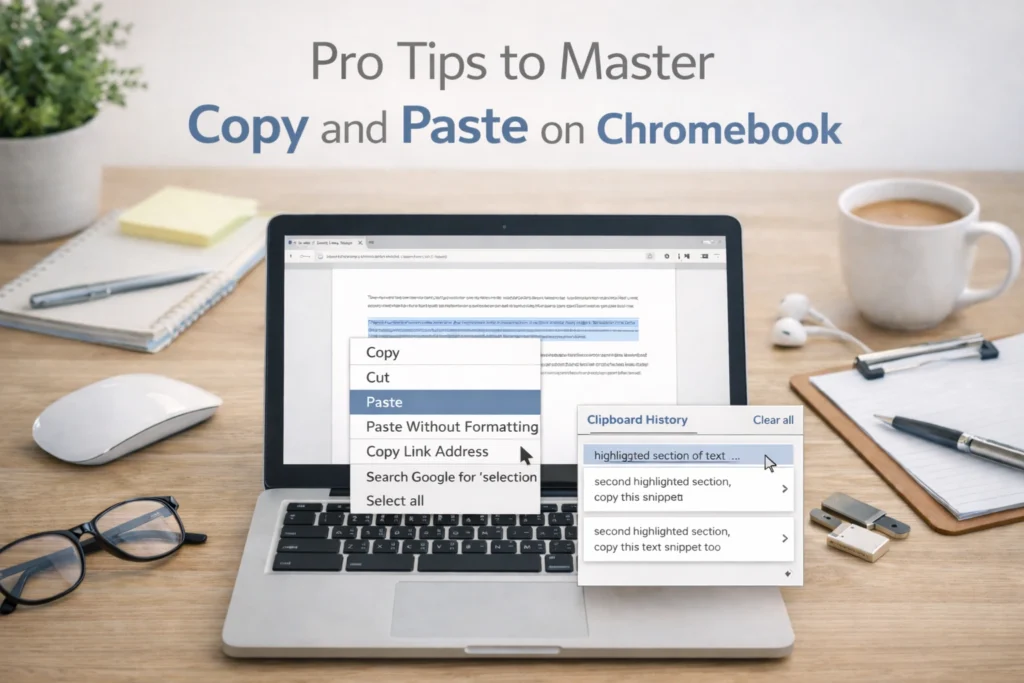
At a basic level, copy and paste is simple. But at a higher level, it becomes a tool for speed, clarity, and control. The difference comes from how you use it in your daily workflow.
One of the most effective habits is relying on keyboard shortcuts instead of switching between menus. This keeps your hands on the keyboard and reduces unnecessary movement. Over time, this alone can save a significant amount of time.
Another powerful approach is combining clipboard history with multitasking. Instead of copying and pasting one item at a time, you can collect multiple pieces of information and use them exactly when needed. This is especially useful for writing, research, and managing client work.
You can also improve your workflow by being intentional about formatting. Instead of fixing problems after pasting, you control the output from the start by choosing the right method. This reduces editing time and keeps your work clean and professional.
As your experience grows, these small improvements start to compound. What once felt like a basic function becomes a system that supports faster execution and better results.
Conclusion
Copying and pasting on a Chromebook may seem like a simple task, but when used correctly, it becomes one of the most powerful productivity tools in your daily workflow. From understanding the basics to mastering advanced techniques like clipboard history and plain text pasting, every step contributes to a smoother and faster experience.
The key is consistency. Once you train yourself to use the right shortcuts, select text accurately, and manage formatting properly, you eliminate friction from your work. Whether you’re writing, researching, or handling client tasks, these small efficiencies make a noticeable difference.
In the long run, mastering this skill is less about the action itself and more about how it supports everything else you do. When your workflow becomes faster and more controlled, your output naturally improves.
FAQs
How do you copy and paste on a Chromebook with no mouse?
You can copy and paste using keyboard shortcuts. Press Ctrl and C to copy and Ctrl and V to paste. This method is the fastest and works across almost all apps on a Chromebook.
What is the shortcut for pasting on a Chromebook?
The standard shortcut for paste is Ctrl and V. If you want to paste without formatting, you can use Ctrl, Shift, and V.
How do I enable clipboard history on Chromebook?
Clipboard history is usually enabled by default on most modern Chromebooks. You can access it by pressing the Search key along with V and selecting the item you want to paste.
Why is copy and paste not working on my Chromebook?
This can happen due to temporary glitches, app restrictions, or keyboard issues. Restarting your device, checking the active window, or updating ChromeOS usually resolves the problem.
Can you copy and paste images on a Chromebook?
Yes, you can copy and paste images just like text. You can copy images from websites or files and paste them into supported apps like documents, emails, or design tools.
📌 Learning something new? Your feed needs AI Mastars.